Customize your web chat widget
Your web chat widget is the chat bubble visitors see on your website. From a channel’s settings, you can match it to your brand by changing its title, colours, theme, and other display options while previewing the result live. When you’re happy with the look, the Installation tab gives you the snippet to paste into your site.
Before you begin
- You have a web chat channel. See Create a web chat channel.
Steps
- Click Channels in the left sidebar.
- Open your existing web chat channel.
- Wait for the channel settings page to load.
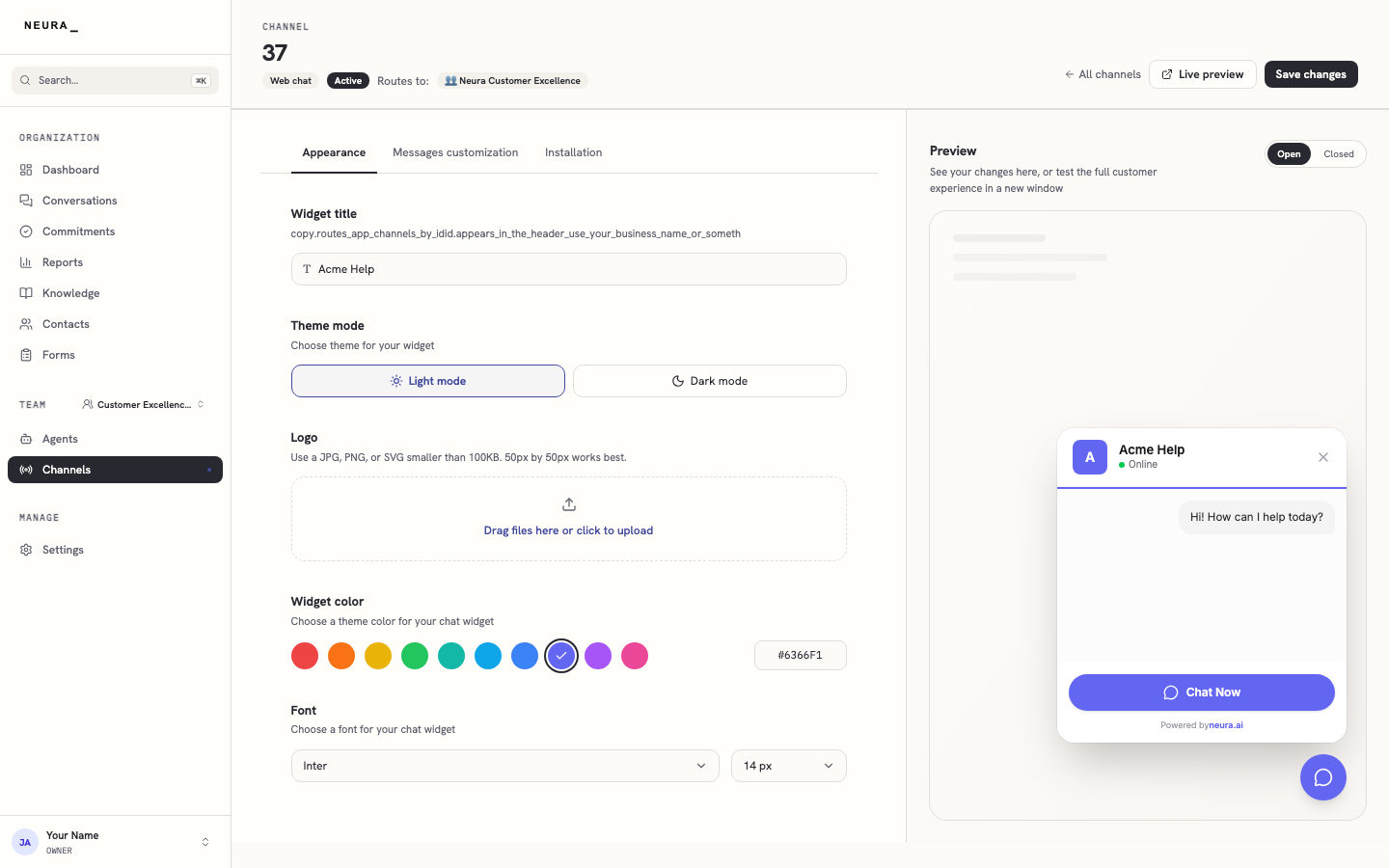
- On the Appearance tab, set the widget title, theme mode, logo, widget color, and font, and use the live preview on the right to check how the widget will look.
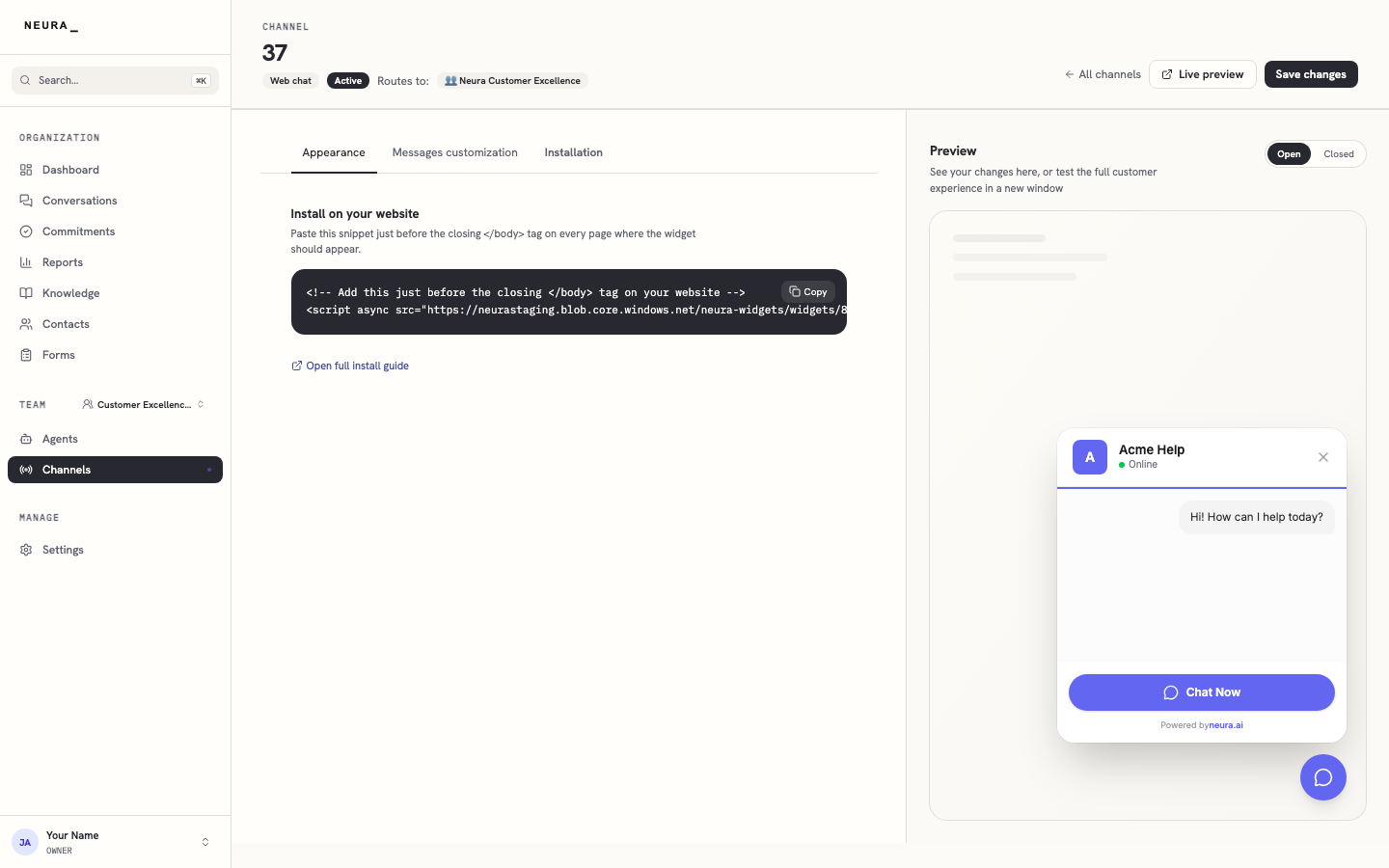
- Click Installation to open the embed snippet for your site.
You’ll know it worked when
Your widget reflects the look you set in the live preview, and you have the embed snippet ready to paste into your website’s HTML.