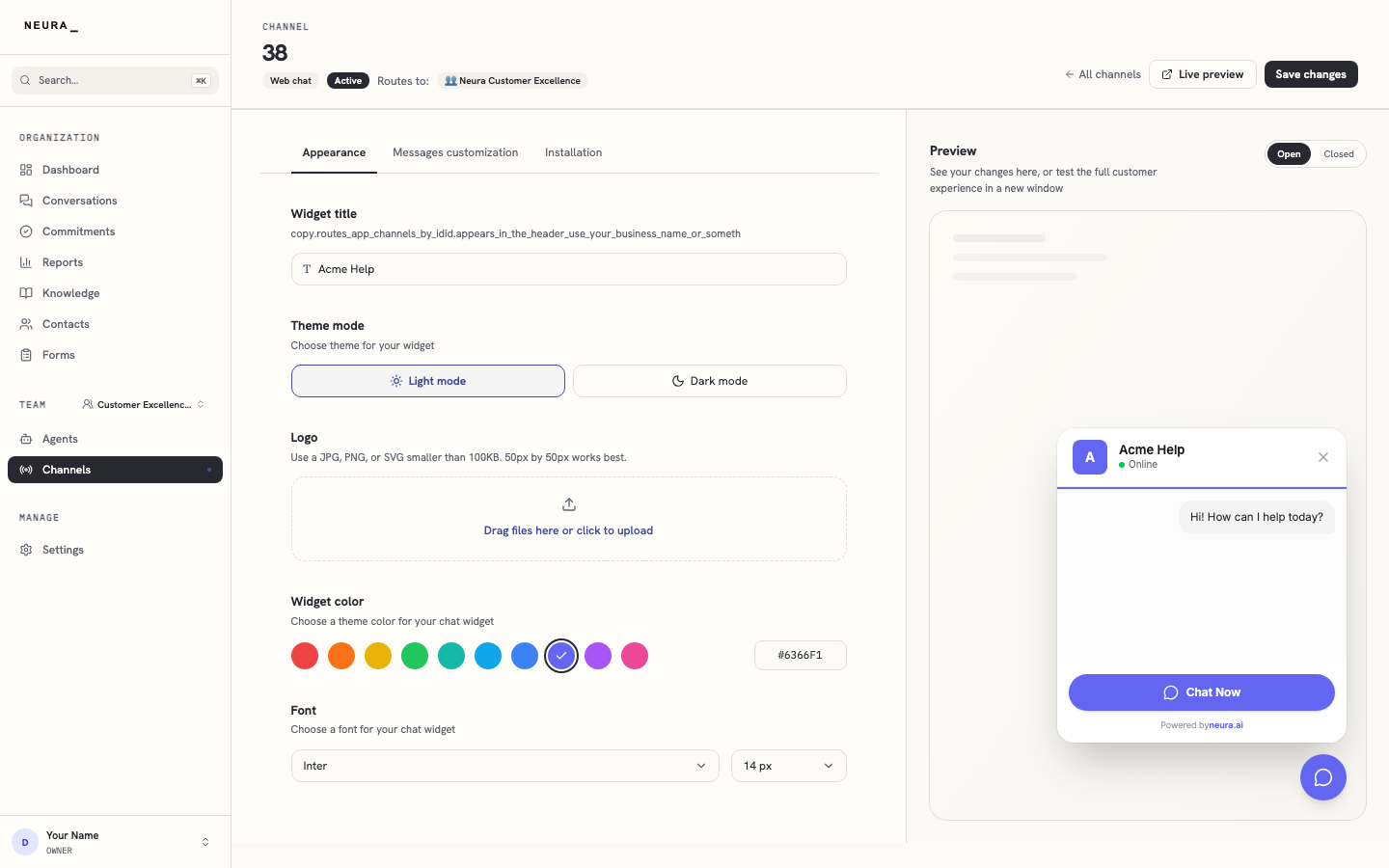
Connect a web chat channel
Connect a web chat channel to your Neura workspace and open its settings page. You will enter your site URL, name the widget, and create the channel.
Before you begin
- An active Neura account you can sign in to.
- The URL of the website where the widget will live.
Steps
-
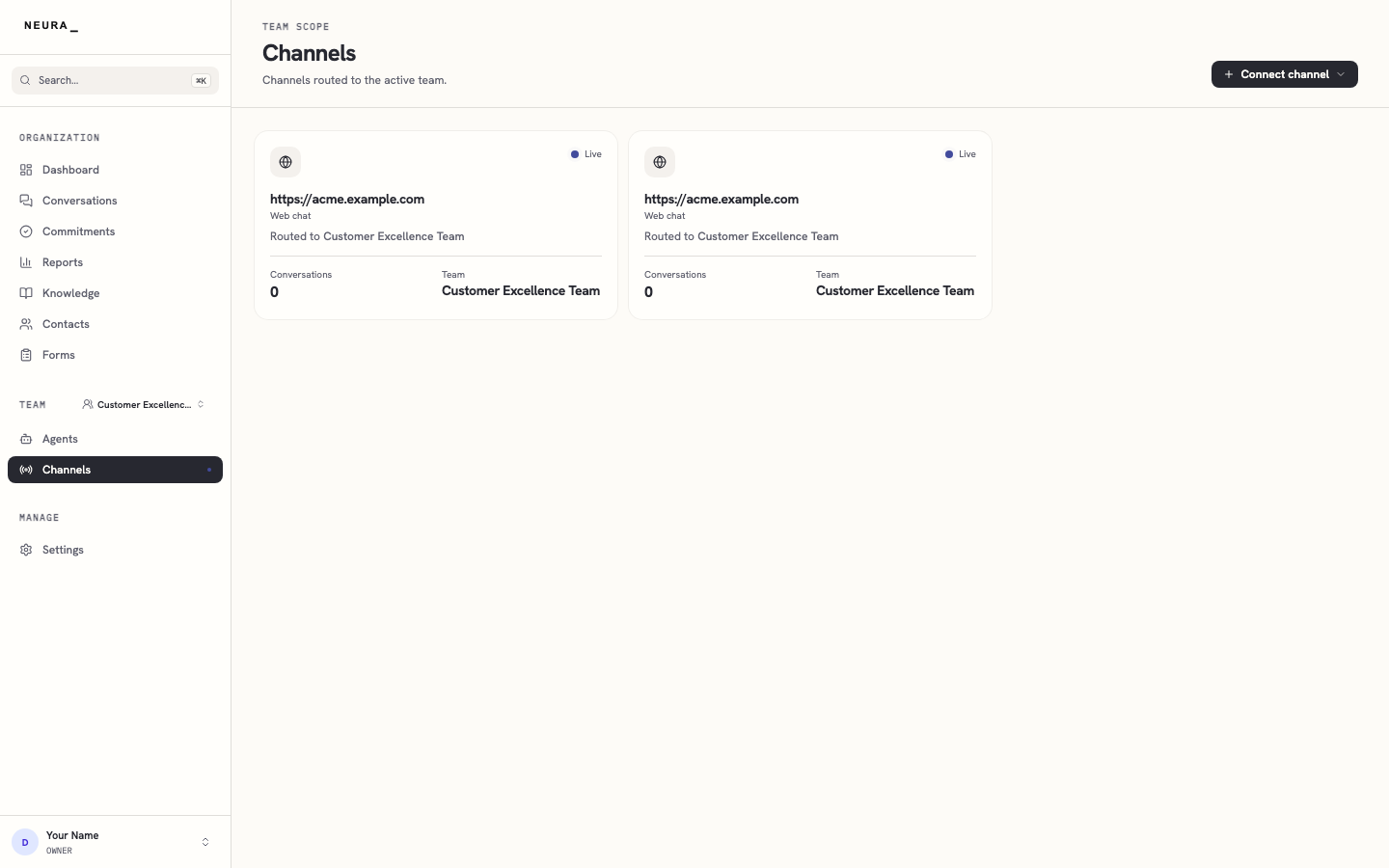
Open Channels from the left sidebar.
-
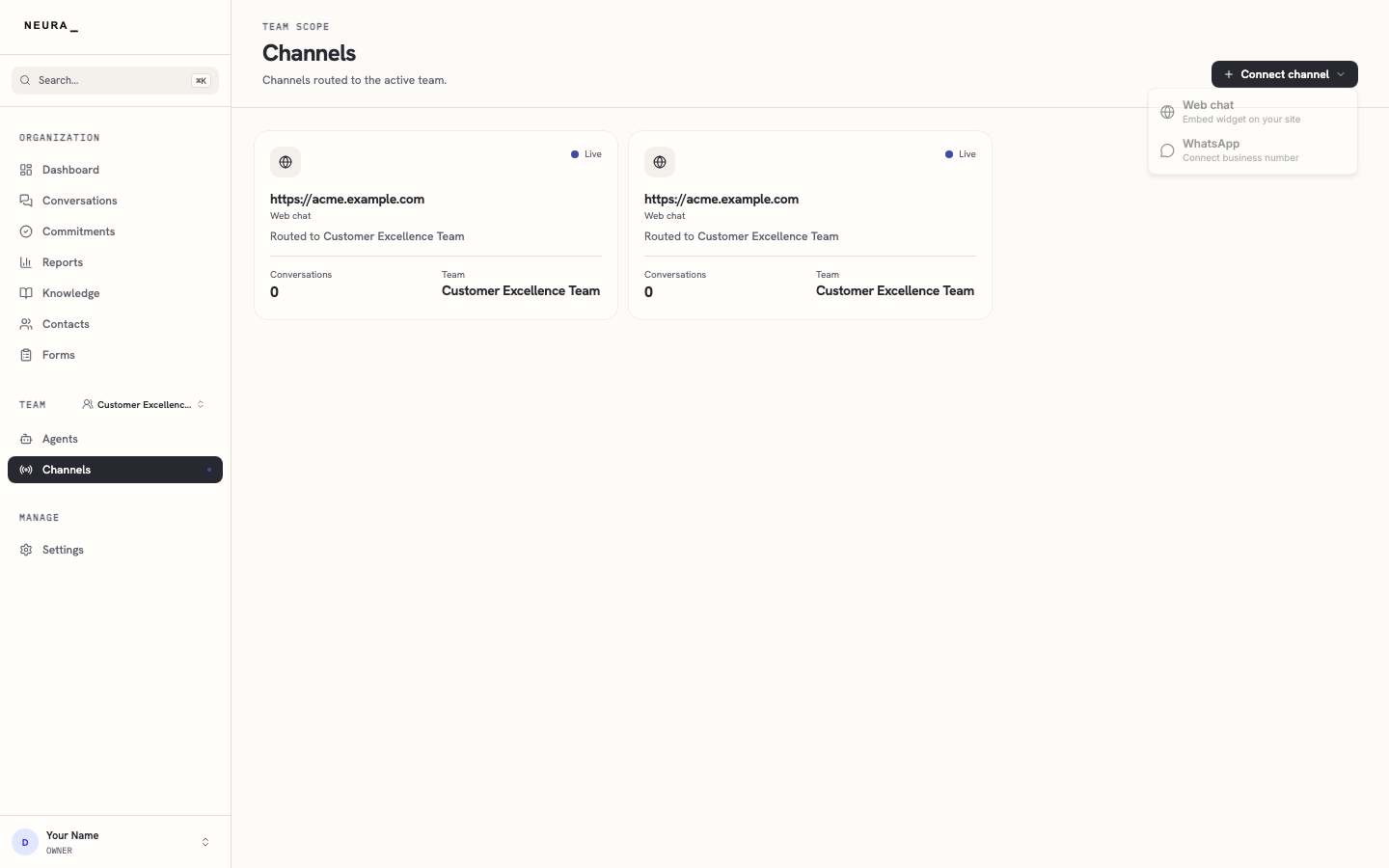
Click Connect channel.
-
Select Web chat from the menu.
-
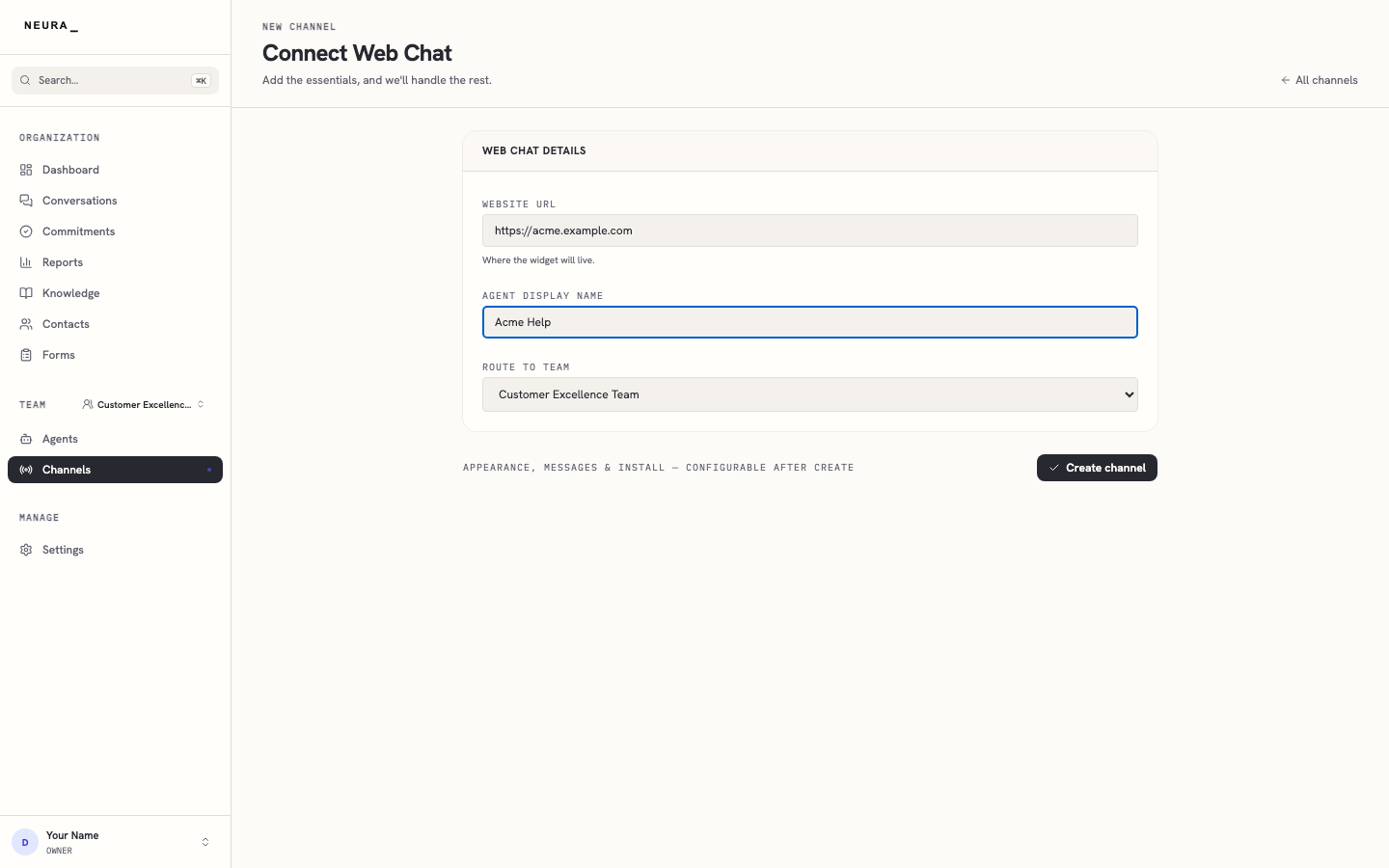
Wait for the Connect Web Chat form to load.
-
Enter your website URL in WEBSITE URL.
-
Enter the widget name you want visitors to see in AGENT DISPLAY NAME.
-
Click Create channel.
-
Wait for the new channel settings page to load.
-
Review your new web chat channel on its settings page.